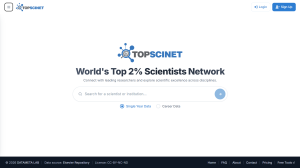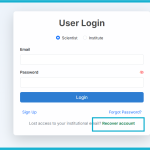

A profile on TOPSCINET is usually claimed with a university or research institute address, because that is how identity is verified at sign‑up. When you change institutions, your previous university eventually deactivates that email, which means password-reset links and security notifications go to an inbox you can no longer access. The result is a locked profile, slow manual verification, and days of unnecessary delay.
A simple recovery email prevents this. It gives you a stable, personal contact point that survives institutional changes, so you can quickly prove you are the rightful owner of your TOPSCINET account and update credentials without friction.
What a Recovery Email Really Does
A recovery email is a secondary, personal address (Gmail, Outlook, etc.) that TOPSCINET uses only when you lose access to your institutional email. It does not replace your institutional login in daily use and does not change how you sign in; you still log in with your institutional address as usual.
Think of it as a spare security channel, not a new identity. If you ever move institutions and your old email stops working, the recovery email becomes the trusted way to verify it is you, request changes, and update your primary institutional address securely.
Add Your Recovery Email:
To avoid future lockouts, add a recovery email now, while you still have access to your institutional account. The steps are straightforward and live in your account settings.
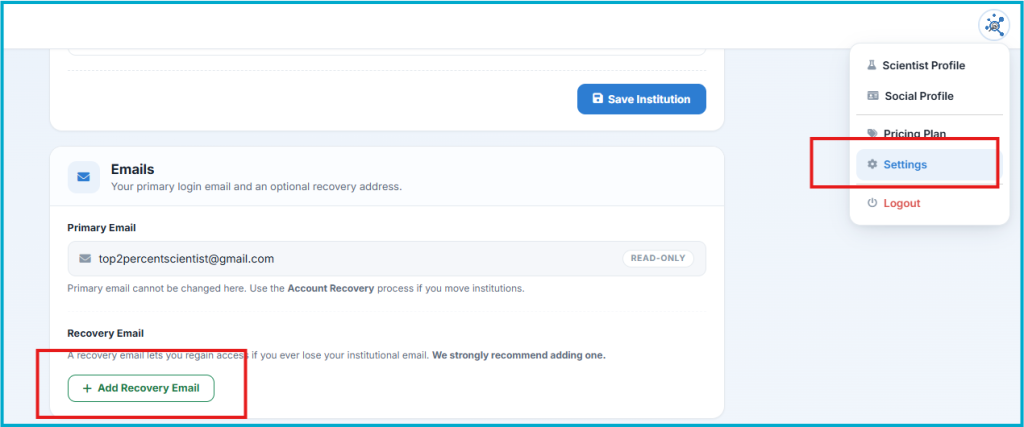
- Log in and open Settings, where you can already edit your profile picture, name, and academic links.
- Scroll to the Emails section. Your primary email appears as read‑only by design; changing it requires a secure recovery flow. Below that, locate the Recovery Email section.
To add the email:
- Click “Add Recovery Email.”
- Enter a stable personal email you control (Gmail, Outlook, personal domain). Prefer an address you have used for years and do not expect to lose.
- Re‑enter your current password so no one can silently attach their own recovery email from a shared or compromised device.
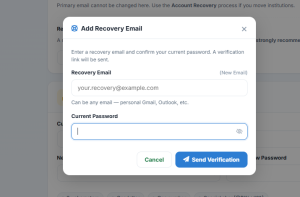
After submitting:
- A verification link is sent to the recovery address you provided.
- Open that inbox, find the message from [email protected], and click the link within 24 hours.
- Once verified, the status in your Emails section changes from “Pending” to “Verified.” At that point, your account is protected against institutional email loss.
How to Choose a Strong Recovery Email
The value of this feature depends on choosing the right address. A good recovery email should be:
- Personal, not institutional: avoid any .edu or corporate domain.
- Long‑lived: ideally, an address you have kept for years.
- Independent of your current employer: do not use the email of the institution you might later leave.
- Accessible from your phone: in a recovery situation, you will want quick access from anywhere.
For many researchers, a long‑standing Gmail account used since their student days works well. Less common providers are fine too, as long as you monitor the inbox and ensure it remains active.
Think of it as a spare security channel, not a new identity. You can not use a recovery email to login to your account.
- Read this article When You Actually Need Account Recovery a step-by-step guide on how to recover your account: https://top2percentscientists.com/how-to-recover-your-account/
If You Did Not Set a Recovery Email in Time
If you have already lost institutional access and never configured a recovery email, recovery is still possible, but slower and more manual. In that case:
- Email [email protected].
- Include your full name as it appears on your profile, the previous institution, your new institutional email, and links that confirm your identity (faculty page, Google Scholar, LinkedIn, ORCID, etc.), along with a short explanation of your move.
- The support team will manually verify the match between your old profile and your new identity before updating your account, which can take several days.
Searchable Database for Top 2% Scientists
Visit TOPSCINET.com
If your name appears in the search results, claim your profile using your institutional email to update your social media links and enhance your online presence.