
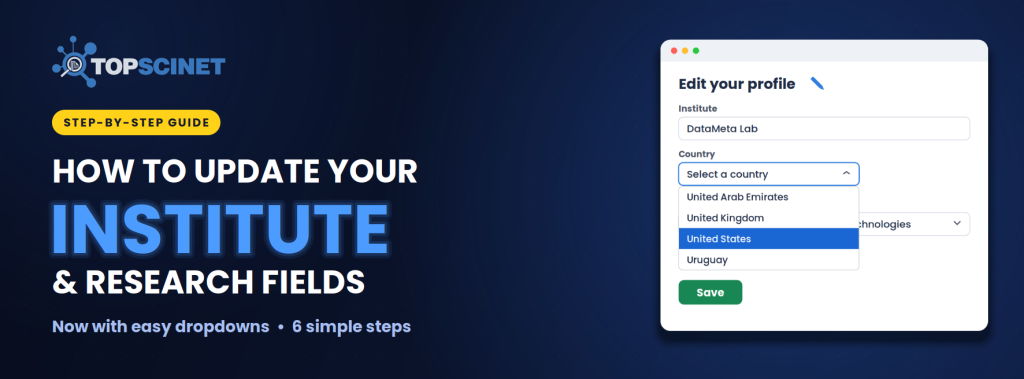

Changed institutions? Listed under the wrong research field? You can now correct your affiliation, country and fields on your TOPSCINET profile in a few clicks. This year’s update replaces typed country codes and free-text fields with simple dropdown menus.
Prefer to watch? [Watch the video tutorial]
What’s new this year
- Country dropdown: pick your country from a list instead of typing a two-letter ISO code.
- Field dropdowns: choose your Main Field and SubField 2 from the official lists instead of typing them.
- Secondary affiliations: add up to two more institutions, for one year or all years.
- Certificate: your updated details now appear on your certificate too.
Step 1: Claim your profile
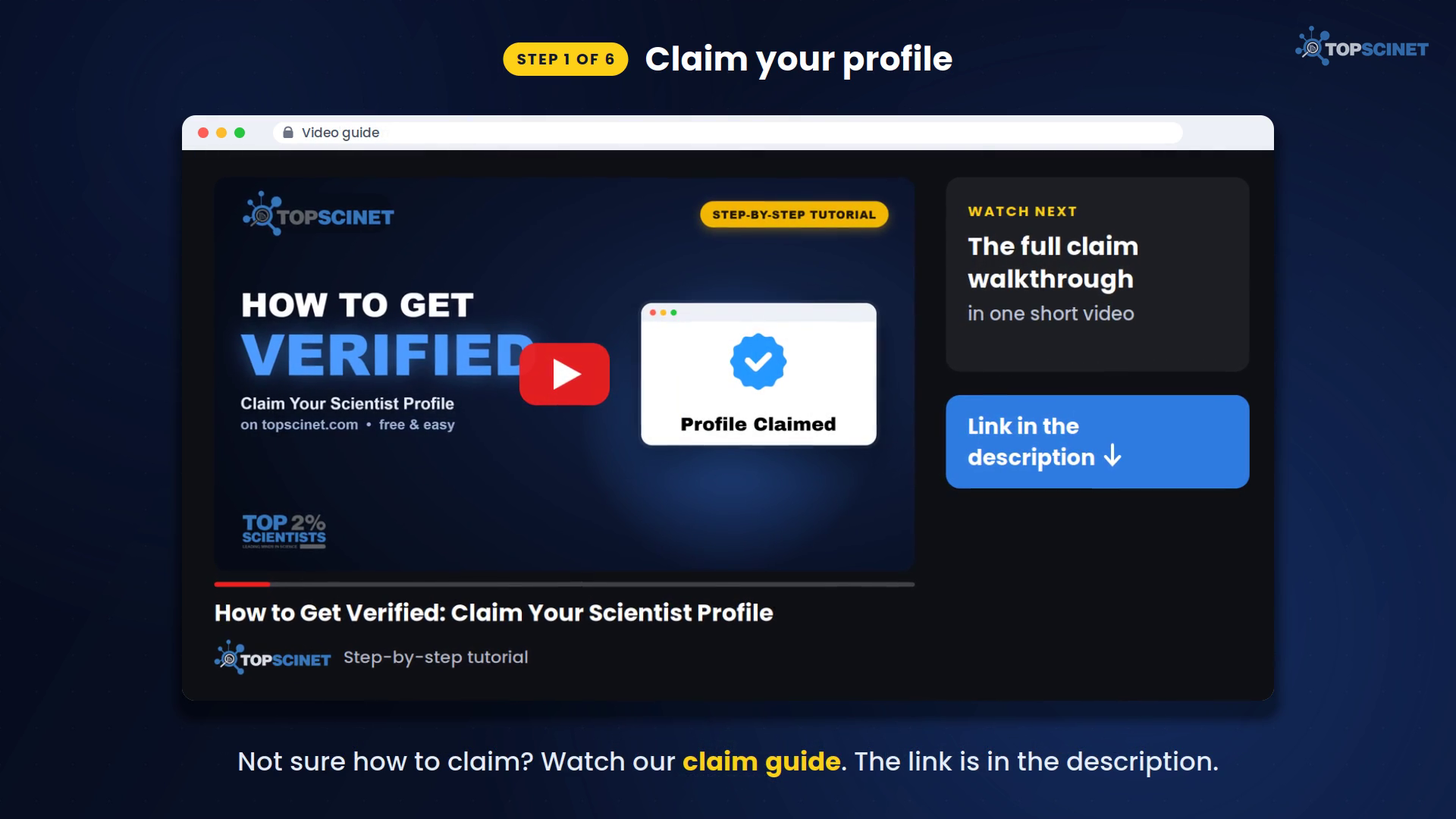
Go to topscinet.com and search for your name. Open your entry and claim it. Once your claim is approved, a blue check mark appears next to your name.
Not sure how to claim? Watch How to Claim Your Profile on TOPSCINET.
Step 2: Subscribe to the Elite Researcher plan
Profile editing is part of the Elite Researcher plan. Without it, your profile shows a notice and no edit icons.
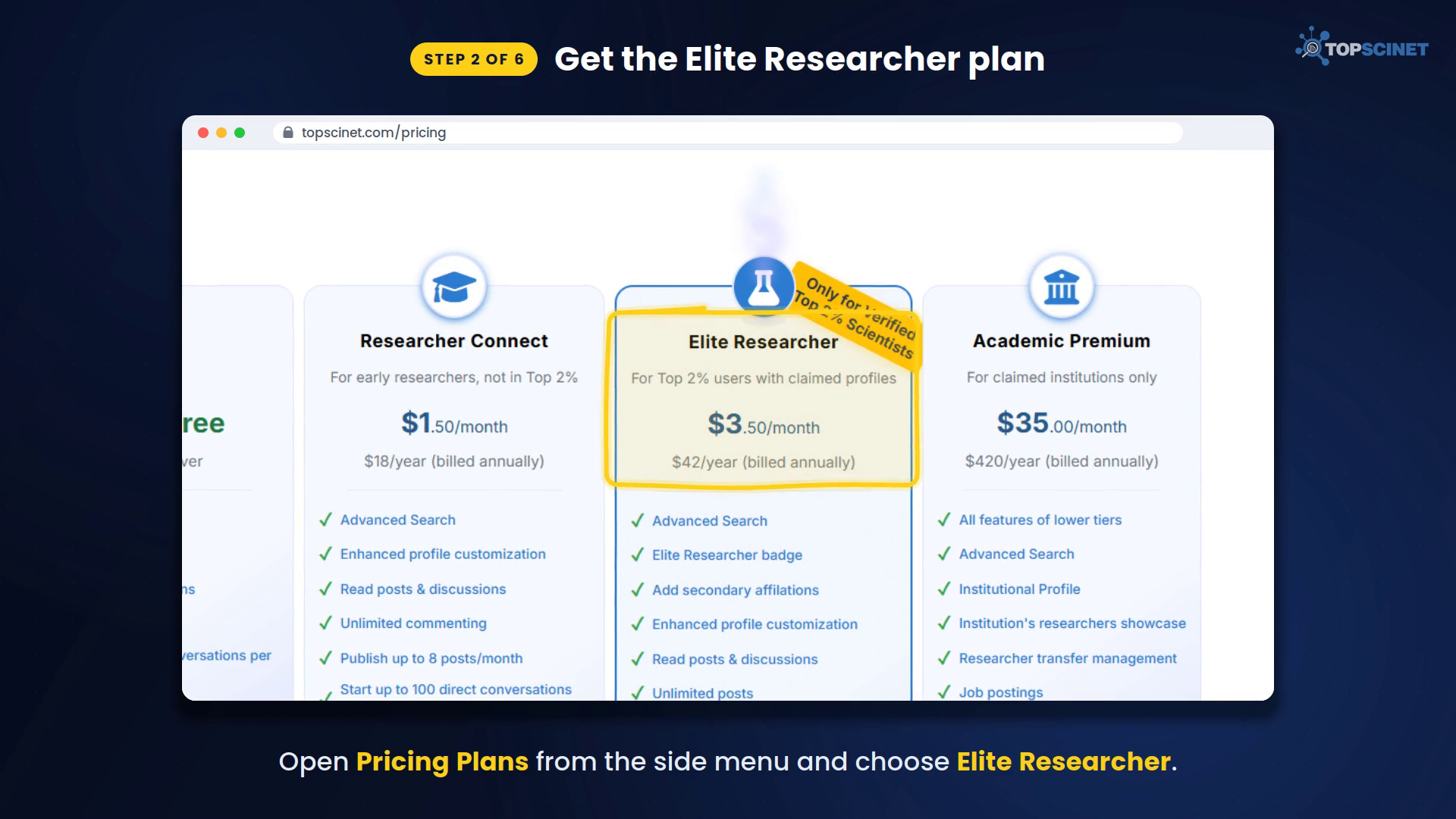
Open Pricing Plans from the side menu, or go to topscinet.com/pricing_table, and choose Elite Researcher. This plan is made for verified Top 2% scientists with claimed profiles.
⚠️ Don’t pick Researcher Connect by mistake. That plan is for researchers who are not on the Top 2% list, and it doesn’t unlock these edits. Choosing the wrong plan means you’d have to subscribe again.
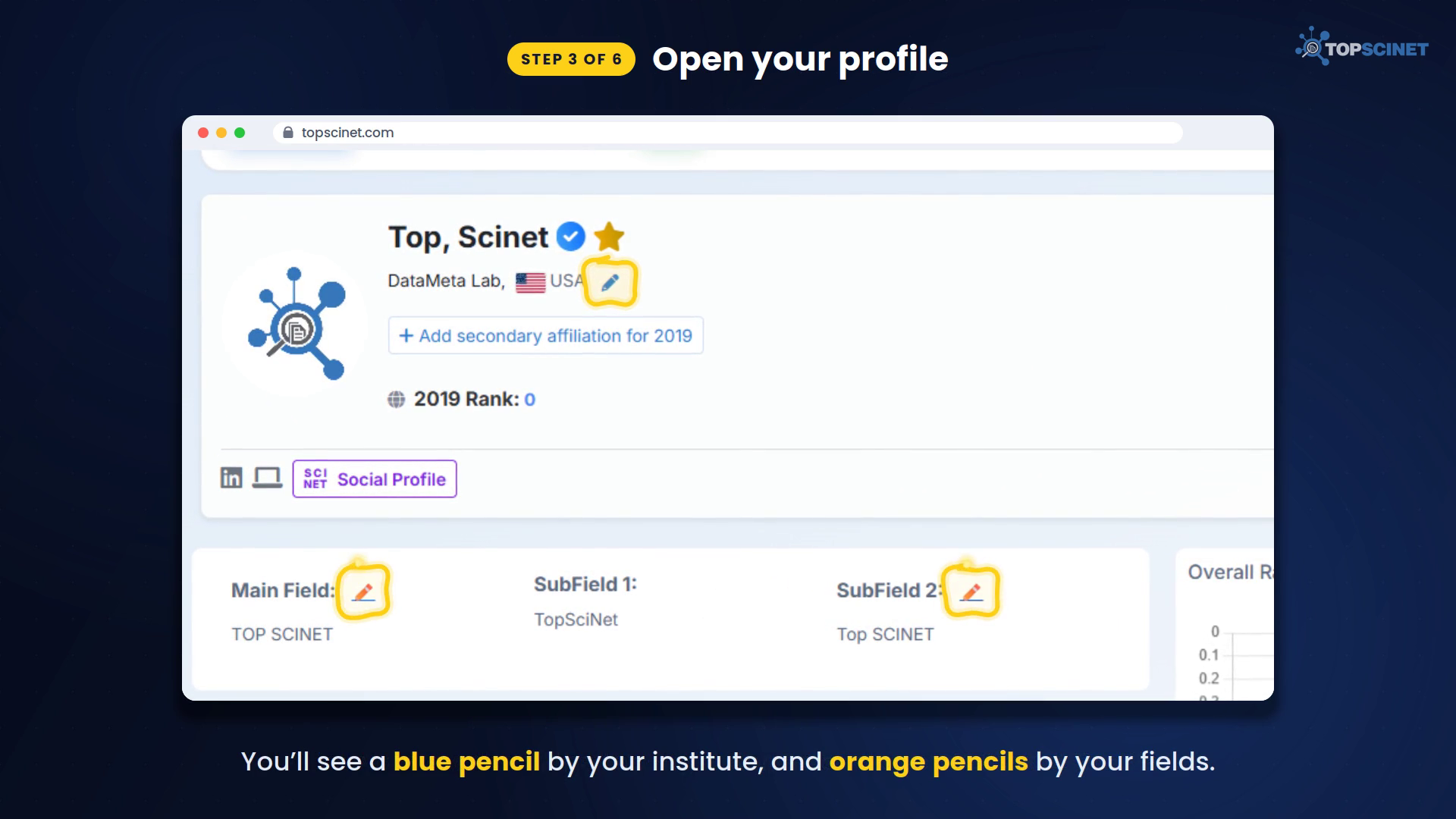
Step 3: Open your profile
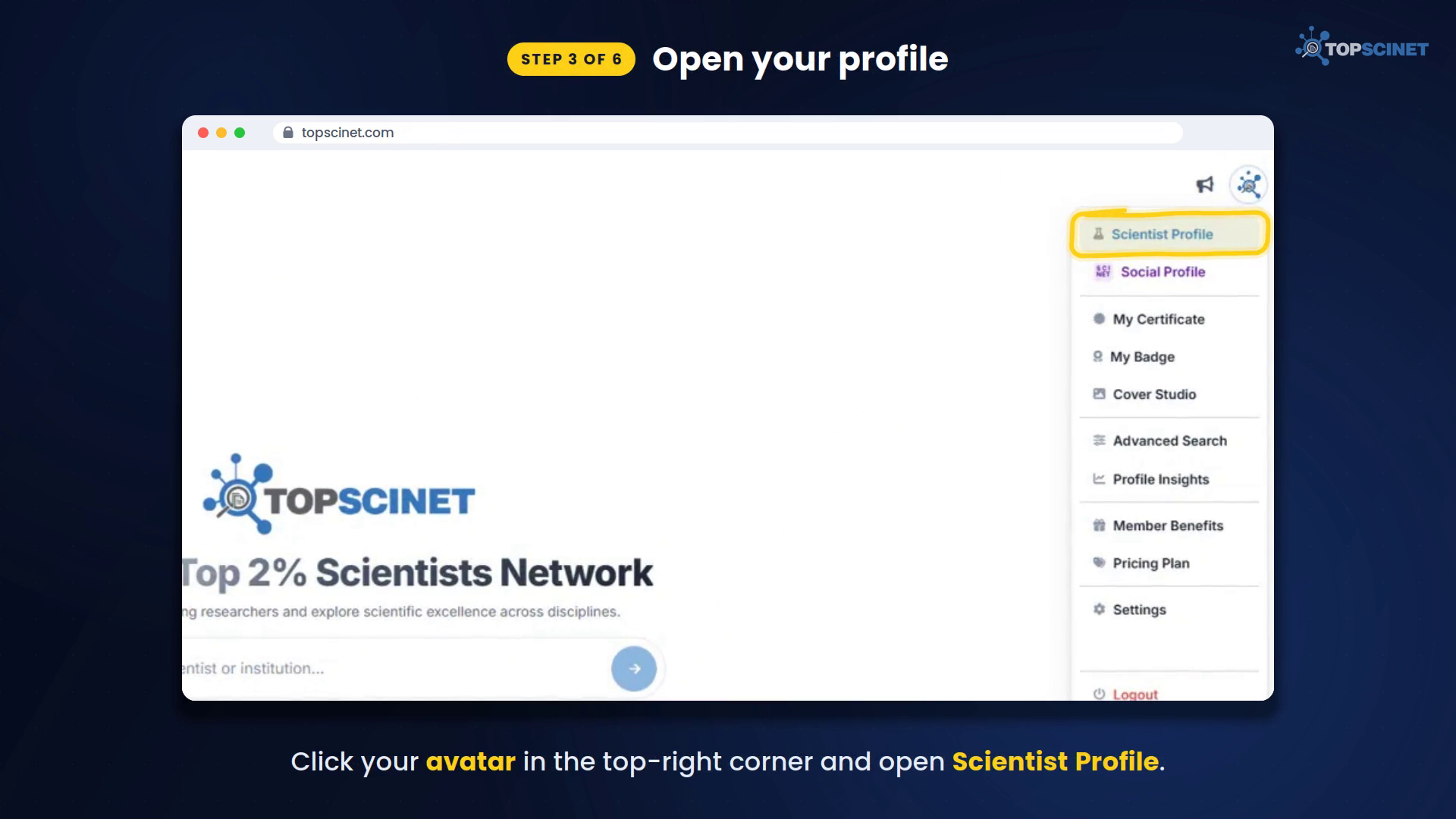
Click your avatar in the top-right corner and choose Scientist Profile. You’ll now see:
- a blue pencil next to your institute name
- orange pencils next to Main Field and SubField 2
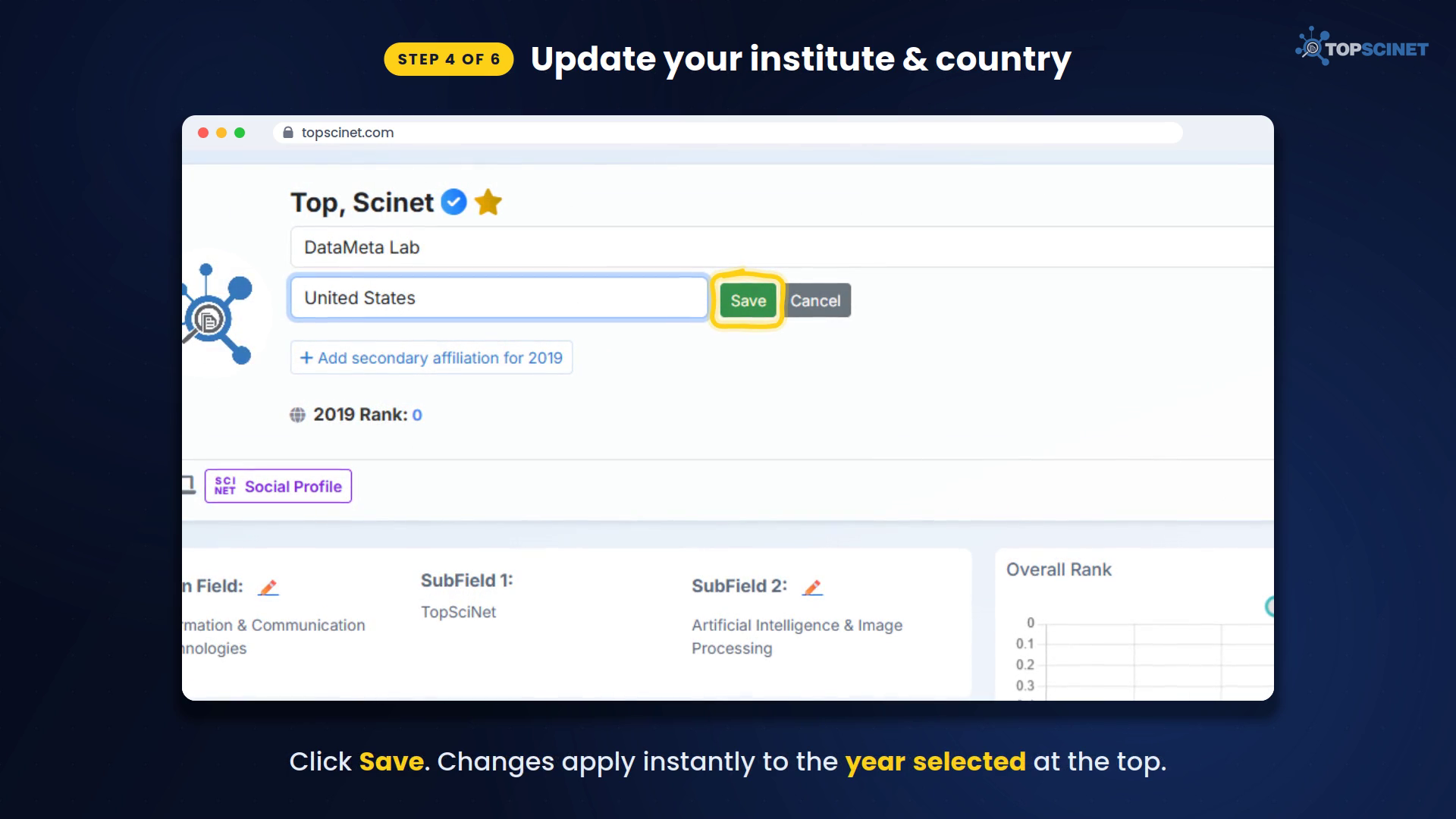
Step 4: Update your institute and country
- Click the blue pencil.
- Type your institute name.
- Choose your country from the dropdown list. You no longer need a two-letter code.
- Click Save.
Your profile updates instantly. Changes apply to the year selected at the top of your profile, so check the year before you edit.
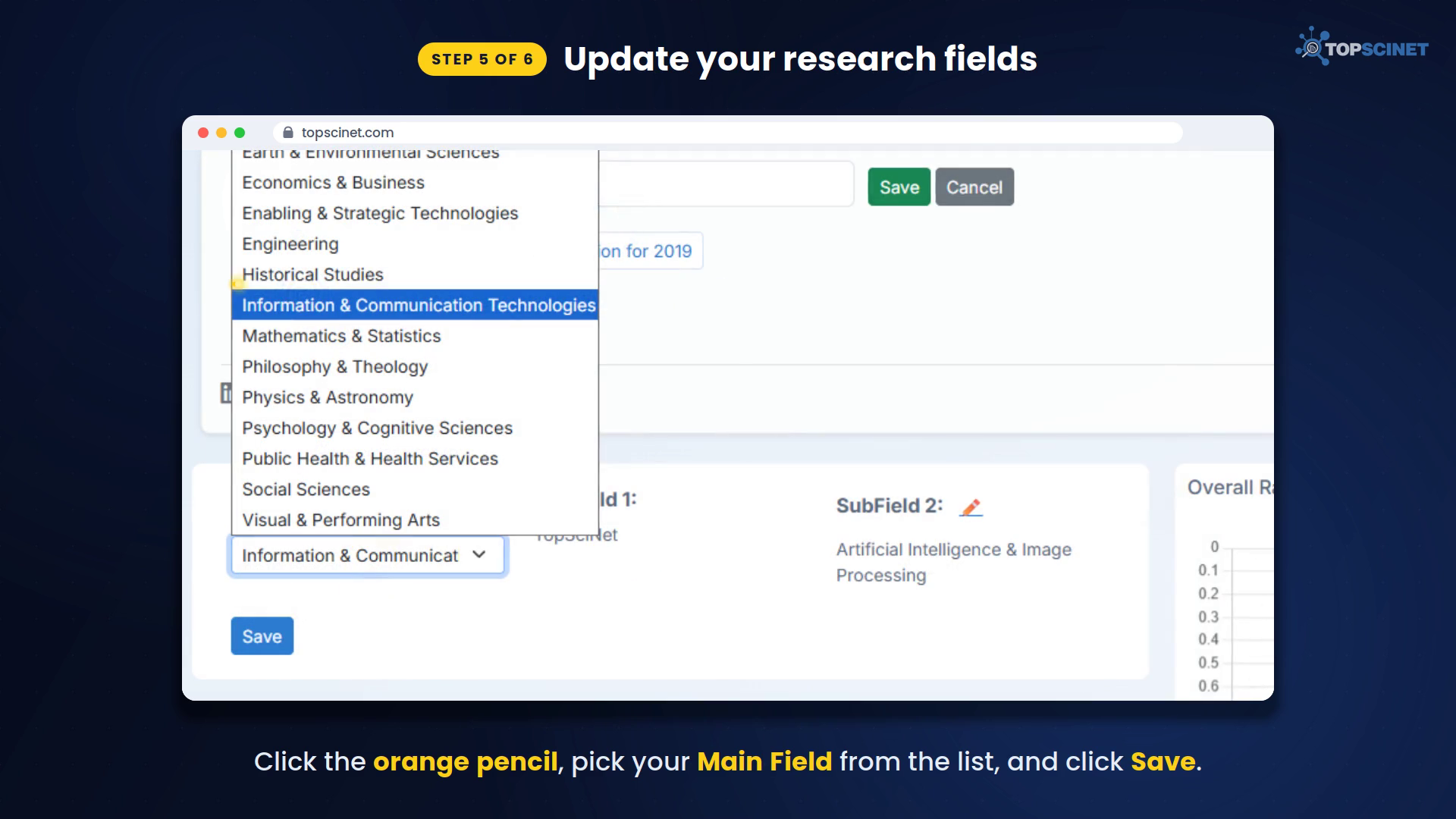
Step 5: Update your research fields
- Click the orange pencil next to Main Field.
- Pick your field from the list and click Save.
- Do the same for SubField 2.
Note: SubField 1 can’t be changed, because your subfield rank graph is linked to it.
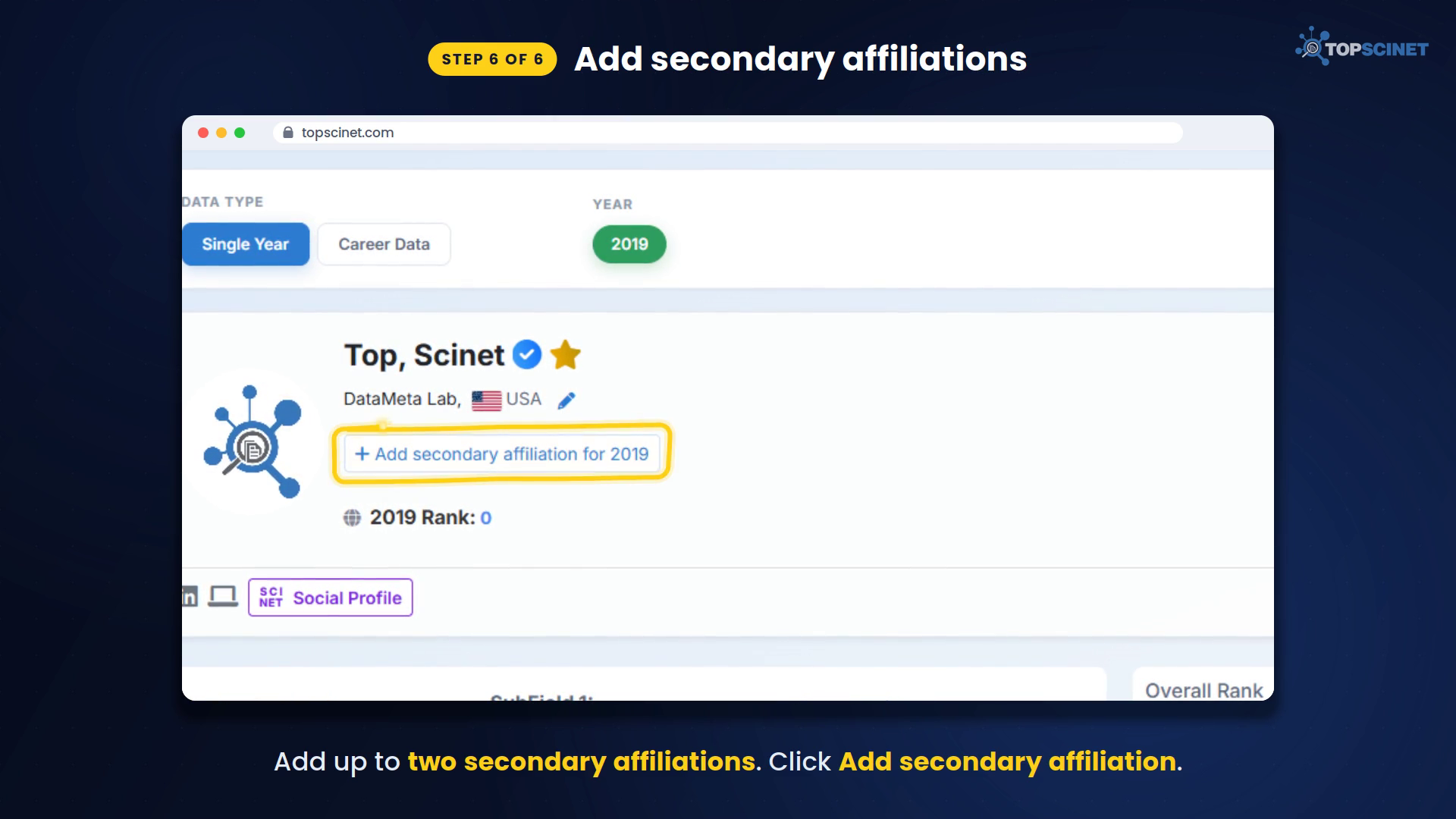
Step 6: Add secondary affiliations
You can add up to two secondary affiliations:
- Click + Add secondary affiliation.
- Choose whether it applies to just this year or all years.
- Enter the institute and select the country.
- Click Add.
Your certificate updates too
Your updated institute and fields also appear on your certificate. Open your profile and click Certificate to download the new version.
More with Elite Researcher
Beyond profile editing, the Elite Researcher plan also unlocks:
- Profile Insights: see who’s reading your profile, week by week
- Your certificate, your way: pick the year, the institution and the ribbons you earned
- The Elite mark: a verified mark on your public ranking profile
- Secondary affiliations: list every institution you work with
- Export your record: download your full publication list
- Advanced Search, no Google ads, and unlimited conversations on SciNet Social
FAQ
Why don’t I see the pencil icons?
Either your profile isn’t claimed and verified yet, or you’re not on the Elite Researcher plan.
Do my changes apply to every year?
No. Institute and field edits apply to the year selected at the top of your profile. Secondary affiliations let you choose “just this year” or “all years”.
Can I change SubField 1?
No. It’s linked to your subfield rank graph.
How long do changes take to show?
They’re instant once you click Save.
For additional help, watch this tutorial video on YOUTUBE: How to Update Your Institute & Research Fields.