
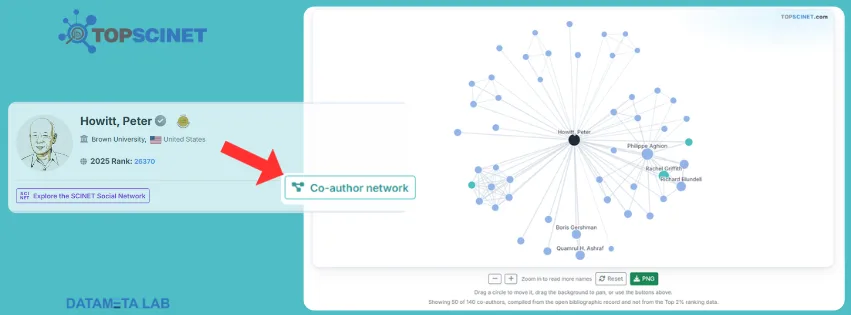

Bringing your full research portfolio to TOPSCINET is straightforward and eliminates the need to enter your papers manually. By importing your bibliographic record via ORCID, the platform automatically tallies your citations, counts co-authors, and builds an interactive co-author network map on your profile.
Here is a step-by-step guide to importing your publications and displaying your co-author network.
Prerequisites and Profile Claiming
Before you can import your publication list, ensure your account has import permissions unlocked:
- Top 2% Ranked Researchers: You must first claim your profile. Once your claim is reviewed and approved, publication importing unlocks automatically.
- Read this article for guidance on how to claim: https://top2percentscientists.com/claim-your-top-2-scientists-profile-on-topscinet-2025/
- Other Researchers: If your name is not in the Top 2% ranking list, you can unlock the feature by subscribing to the Researcher Connect plan via the Pricing Plans menu.
Step 1: Open Your Social Profile
Access your profile management settings through the main navigation menu:
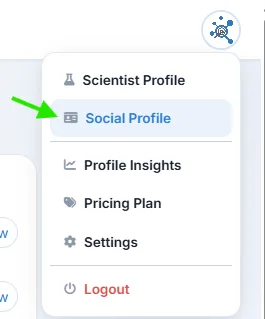
- Click on your avatar or profile icon in the top right corner of the screen.
- Select Social Profile from the dropdown menu.
- Navigate to the Publications section on the social profile page.
Step 2: Link Your ORCID and Google Scholar
Accurate identifiers ensure the system retrieves your exact publications without mixing them up with researchers who share your name:
- Enter your ORCID iD (Full URL
https://orcid.org/...). - (Optional) Add your Google Scholar profile URL to help colleagues identify you.
- Click Save these links to store your identifiers.
Step 3: Import Your Publications
Once your ORCID is saved, you can pull in your records:
- Click the purple Import my publications button.
- TOPSCINET will query the open bibliographic record, compile your research output, and compute your total metrics (publications, citations, h-index, and co-author count).
- Review your imported list: you can use the eye icon to hide any entries that do not belong to you (hidden items will not return on future refreshes).
- To export the list using the CSV or BibTeX buttons, you need a subscription plan.
- To export the list using the CSV or BibTeX buttons, you need a subscription plan.
Note: Metrics displayed in this section are compiled directly from your imported bibliographic record and do not alter the standardized figures used for the Top 2% ranking calculations.
Step 4: View the Co-Author Network
Importing your publications automatically generates your co-author graph:
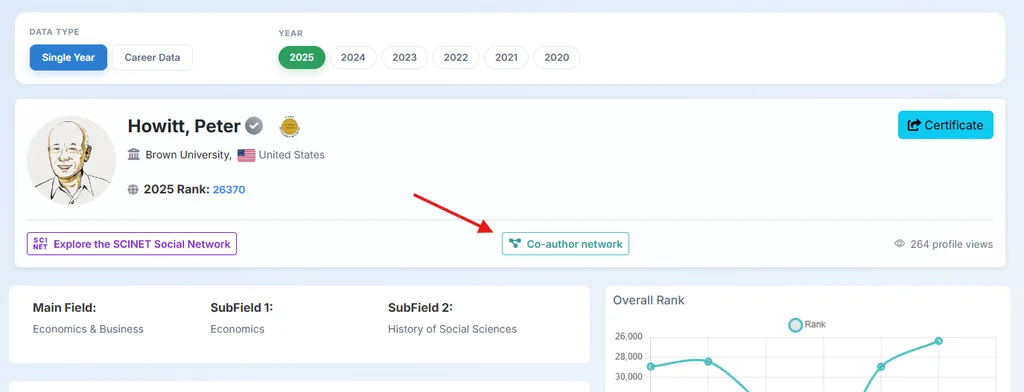
- Visit your public profile page.
- Locate and click the Co-author network button next to the Explore the SCINET Social Network badge.
- Explore the interactive visual map:
- Center node (Black): Represents your profile.
- Teal nodes: Co-authors who appear in the Top 2% ranking list.
- Blue nodes: Co-authors who have an active TOPSCINET account.
- Grey/Light Blue nodes: Co-authors compiled from open bibliographic records.
- Node and Line size: Node size reflects joint publication volume, and connecting lines show collaborative links.
- Use the Zoom in / Zoom out, Reset, or PNG download buttons to interact with and export your collaboration map.
Searchable Database for Top 2% Scientists
Visit TOPSCINET.com
If your name appears in the search results, claim your profile using your institutional email to update your social media links and enhance your online presence.


Hello,
I have been included in the Top 2% List every year since 2000. However, my profile page on your website does not reflect this: the year 2021 is missing.
Could you please look into this and update my record so that all years are shown correctly? For reference, my details are:
Olfa Kanoun
Technische Universität chemnitz
Sincerely yours
Olfa Kanoun
We have merged your profiles: https://topscinet.com/scientist_profile/Kanoun,%20Olfa/1998/?stype=single_year
Hello,
I have been included in the Top 2% List every year since 2023. However, my profile page on your website does not reflect this: the year 2023 is missing.
and H-index not updated at any way
i want you update my data as the H-index not updated
https://scholar.google.com/citations?user=mPhGBCUAAAAJ&hl=en
https://www.scopus.com/authid/detail.uri?authorId=57194898913
Dr. M.G. El-Desouky
PhD in Analytical Chemistry
Egyptian Propylene and Polypropylene Company (EPPC)
We have merged your profile: https://topscinet.com/scientist_profile/El-Desouky,%20M.%20G./2017/?stype=single_year
Hello,
I have been included in the Top 2% List every year since 2023. However, my profile page on your website does not reflect this: the year 2023 is missing.
and H-index not updated at any way
i want you update my data as the H-index not updated
https://scholar.google.com/citations?user=mPhGBCUAAAAJ&hl=en
https://www.scopus.com/authid/detail.uri?authorId=57194898913
Dr. M.G. El-Desouky
PhD in Analytical Chemistry
Egyptian Propylene and Polypropylene Company (EPPC)
We have merged your profile: https://topscinet.com/scientist_profile/El-Desouky,%20M.%20G./2017/?stype=single_year
Hello,
I have been included in the Top 2% List every year since 2023. However, my profile page on your website does not reflect this: the year 2023 is missing.
and H-index not updated at any way
i want you update my data as the H-index not updated
https://scholar.google.com/citations?user=mPhGBCUAAAAJ&hl=en
https://www.scopus.com/authid/detail.uri?authorId=57194898913
Dr. M.G. El-Desouky
PhD in Analytical Chemistry
Egyptian Propylene and Polypropylene Company (EPPC)
We have updated your profile: https://topscinet.com/scientist_profile/El-Desouky,%20M.%20G./2017/?stype=single_year
Hello,
I have been included in the Top 2% List in 2025 and 2026. However, my profile page on your website does not reflect this: the year 2025 is missing.
Could you please look into this and update my record so that all years are shown correctly? For reference, my details are:
Sincerely yours
Muhammad Shaaban
Henan University of Science and Technology
We have merged your profiles: https://topscinet.com/scientist_profile/Shaaban,%20Muhammad/2013/?stype=single_year
Thank you for recognizing my inclusion in the Top 2% of Scientists for 2026. However, I would like to request a correction to my institutional affiliation on the certificate. I am currently serving as an Assistant Professor in the Department of Computer Science and Engineering (CSE), State University of Bangladesh. The certificate currently lists Skill Morph, which is not my primary academic affiliation. Kindly update the certificate to reflect my current university affiliation accurately. Thank you for your kind assistance.
To update your primary affiliation, please navigate to the Pricing Plans tab in the side menu on our website and subscribe to the Elite Researcher Plan
Hello there,
I have created my profile on this site. However, I could not merge my Google Scholar and Orcid Ids with this.
Please help me.
Regards,
Prof Dr M Mahbubur Rahman
Jahangirnagar University
You can follow instructions given in this article: https://top2percentscientists.com/how-to-import-publications-co-author-network-topscinet/
Hello Again,
My Google Scholar Account is
https://scholar.google.com.au/citations?hl=en&user=ZI5pCe4AAAAJ
Orcid Account is
https://orcid.org/0000-0002-6778-7931
Please integrate these into my account on this site.
The list is compiled by taking a snapshot of data once a year from Scopus data. All the data (i.e. affiliation, h-index, publications) will be updated according to Scopus data in next year’s list.
For more details, read the following article: https://top2percentscientists.com/citation-counts-difference/
I have just joined this link, but can’t find my profile. Can you please help.
It is an automatic selection process. The selection process is based on specific criteria and methodologies (not only citations). For a comprehensive understanding of the methodology and selection criteria, please refer to this article:https://top2percentscientists.com/methodology-and-selection-criteria-of-top-2-scientists-list/
Dear TOPSCINET Support Team,
I am writing to request the linking of my ORCID iD to my TOPSCINET account. My details are as follows:
Name: Jing Chen
Institution: Nanjing University of Chinese Medicine
ORCID iD: https://orcid.org/0000-0002-2681-0349
Main Field: Clinical Medicine
Sub-Field 1: Pharmacology & Pharmacy
Sub-Field 2: Nanoscience & Nanotechnology
I understand that TOPSCINET allows users to link their ORCID iD through the Social Profile settings once the profile has been claimed and approved. By importing my bibliographic record via ORCID, the platform can automatically compile my publication list, citation metrics, and co-author network on my profile.
I would therefore be grateful if you could assist me in establishing this linkage, or advise me on the appropriate steps to complete the process from my end. I am happy to provide any further information or verification required.
Thank you for your time and assistance.
Yours sincerely,
Jing Chen
Nanjing University of Chinese Medicine
ORCID: https://orcid.org/0000-0002-2681-0349
You can follow the instructions given in this article: https://top2percentscientists.com/how-to-import-publications-co-author-network-topscinet/
Hello, Myself Dr. Vasant Wagh, My name is included in the Top 2% scientist List in 2025. However in list of 2026, my name is missing. Please update the list. following is link of my scopus profile.
https://www.scopus.com/authid/detail.uri?authorId=57190949172
It is an automatic selection process. The selection process is based on specific criteria and methodologies (not only citations). For a comprehensive understanding of the methodology and selection criteria, please refer to this article:https://top2percentscientists.com/methodology-and-selection-criteria-of-top-2-scientists-list/
Hello Sir/Madam,
Greetings of the Day
I cannot see my name ‘Varisha Anjum’. I have updated ORCID ID and Google Scholar profile link. I want to claim my profile. Help me resolve my issue.
It is an automatic selection process. The selection process is based on specific criteria and methodologies (not only citations). For a comprehensive understanding of the methodology and selection criteria, please refer to this article:https://top2percentscientists.com/methodology-and-selection-criteria-of-top-2-scientists-list/
Subject: Request to Correct University Name on My 2% Certificate
Dear Sir/Madam,
I am writing to request a correction to the university name shown on my 2% Certificate. The correct name is Hubei Engineering University.
My profile link is:
https://topscinet.com/scientist_profile/Ahmed,%20Manzoor/2012/?stype=single_year
I would be grateful if you could update the certificate with the correct university name. Please let me know if you need any additional information.
Thank you for your assistance.
Best regards,
Manzoor Ahmed
For detailed instructions on how to update affiliation, you can follow this guide: https://top2percentscientists.com/update-institute-research-fields-topscinet-2026/
Hello,
I have been included in the Top 2% List every year since 2023. However, my profile page on your website does not reflect this and H-index is not updated. Could
you please update my data? https://scholar.google.com/citations?user=hluwc9AAAAAJ&hl=en
Best,
Eric Banan-Mwine Daliri, PhD
https://topscinet.com/scientist_profile/Daliri,%20Eric%20Banan%20Mwine/2015/?stype=single_year
The list is compiled by taking a snapshot of data once a year from Scopus data. All the data (i.e. affiliation, h-index, publications) will be updated according to Scopus data in next year’s list.
For more details, read the following article: https://top2percentscientists.com/citation-counts-difference/
Please help me to find my profile on TOPSCINET
my details are Dr. Somdatta Y. Chaudhari
M.Pharm PhD (Pharma.Chem)
Associate Professor
Dept- Pharma.Chem
Modern College of Pharmacy,
Nigdi, Pune. (India)
Profile: https://www.researchgate.net/profile/Somdatta-Chaudhari/publications
Vidwan-ID : 383771
Researcher-ID: 383771
Google Scholar ID: kNiOK7AAAAAJ
Scopus-ID: 58023514100
Orcid-ID: 0000-0002-9064-2941
is an automatic selection process. The selection process is based on specific criteria and methodologies (not only citations). For a comprehensive understanding of the methodology and selection criteria, please refer to this article: https://top2percentscientists.com/methodology-and-selection-criteria-of-top-2-scientists-list/
Dear Sir/Madam,
I signed up and created account
My Scopus and Google scholar profiles are give here
Google Scholar
https://scholar.google.com/citations?user=DXJYygEAAAAJ&hl=en
Scopus
SC
https://www.scopus.com/authid/detail.uri?authorId=26429348300
When will be my profile is activated?
Thanks
It is an automatic selection process. The selection process is based on specific criteria and methodologies (not only citations). For a comprehensive understanding of the methodology and selection criteria, please refer to this article: https://top2percentscientists.com/methodology-and-selection-criteria-of-top-2-scientists-list/
My scopus profile is as follows:
https://www.scopus.com/authid/detail.uri?authorId=22980857600
However, I could not find my name in 2% scientist list. On the other hand, scientist with lesser number of publications, citations snd h-index are in the list. Please rectify the problem.
It is an automatic selection process. The selection process is based on specific criteria and methodologies (not only citations). For a comprehensive understanding of the methodology and selection criteria, please refer to this article: https://top2percentscientists.com/methodology-and-selection-criteria-of-top-2-scientists-list/